
Management of assigned items in Shop Floor Interface allows to manage items assigned in device and stock locations and see status of items in a stock. It allows following operations:
- edit existing assignment in device,
- edit existing assignment in locations,
- assign item to location and
- adjust quantities in locations.
Edit existing assignment
To edit existing assignment, select Item assignments option under Stock management menu. All items assigned inside this device will be listed.

Select Edit button (1) on item to be updated. Details about assignment of this item are shown.

On assignment detail screen information about all locations where this item is located is shown. To change physical maximum quantity on location and location rule, press Edit button
(1) on the location. To change purchase information for this item on this device, press Purchase information button
(2). To move item from one location to another, press Move button
(3) and select new location. If there is any physical quantity on the location, this quantity must be moved also (system will guide you in moving process). The action will be covered by Withdraw transaction created for the old location and Placement transaction created for the new location. To remove assignment from location, press Remove button
(4). If there is any physical quantity left on the location, system will allow you to remove the items. For each item removed from the location, Withdraw transaction is created. To remove item from device completely, press Remove from all locations button
(5). System will allow you to remove remaining items from all locations. For each item removed from the location, Withdraw transaction is created. Item will no longer be purchased for this device. It is not possible to remove item from device if there is any opened order for this item.
Assign item to location
To assign this item to additional location, select Assign item to location button
(6). See assign item to location for more information.
Adjust quantities in location
To change quantities of the item in a location, press Place or withdraw quantity
(7). This option allows to add additional units to a location or remove existing units from the location. This adjustment is similar to an inventory, but instead of Inventory transactions, it will generate Placement transaction for each additional unit added to a location and Withdraw transaction for each unit taken out from a location. Action also does not change Date of last inventory for the location.
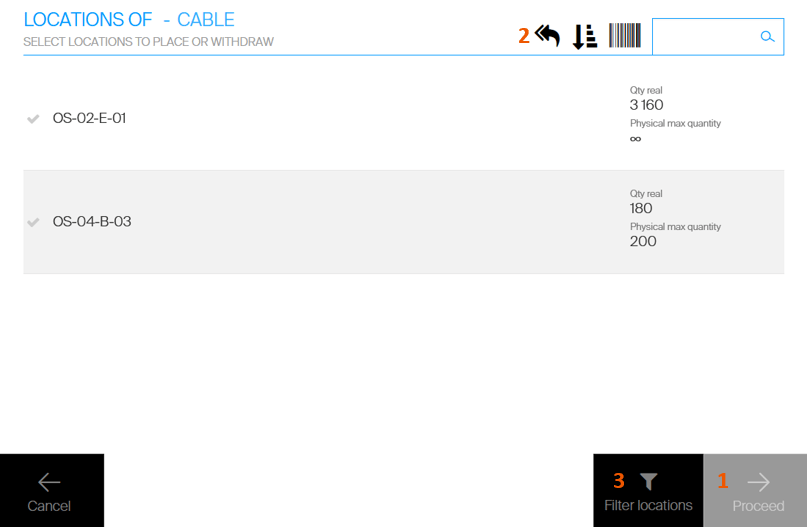
To start the adjustment, select location for which the quantity should be adjusted and then proceed
(1). It is possible to select multiple locations at once or select all
(2). Locations can be filtered
(3) to show only locations from selected storage devices or modules.
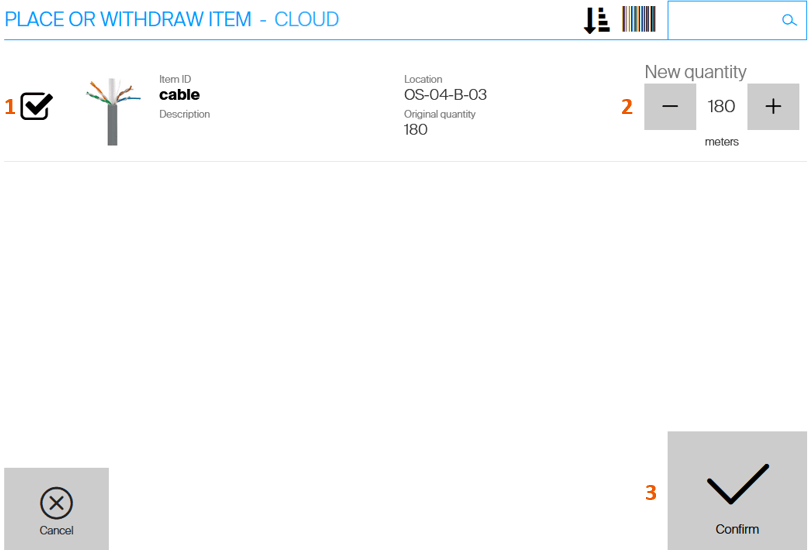
For locations from open storage devices, mark location as adjusted
(1) and set new quantity in the location
(2). If item is serialized, serial numbers on the location must be selected. Once adjustment is finished, confirm the changes
(3).
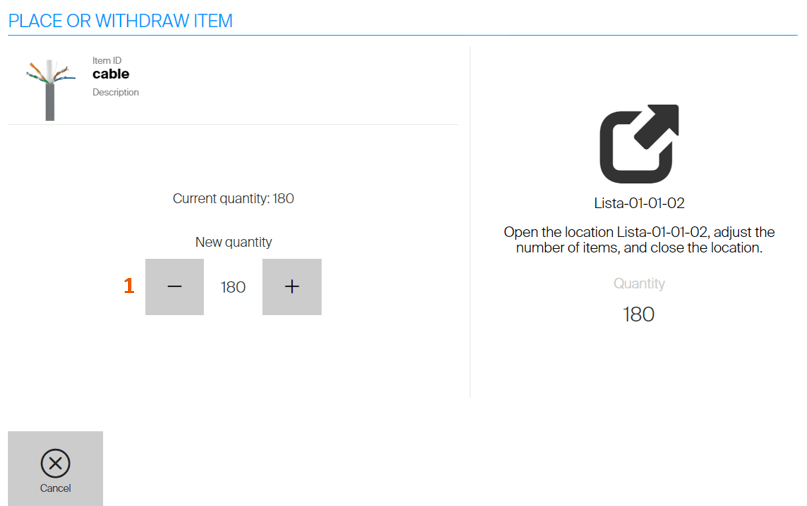
For locations on controlled storage devices, quantity can be adjusted (1) once location is opened or accessible. Once adjusted, close the location or confirm the change. If item is serialized, take all units from the location first. Then adjust the quantities, select serial numbers on the location and return the items back.

As the last step, summary of the adjustment is shown.
If quantity in a location has not been changed by the adjustment, no transaction is created.