
When predefined pick lists are used, pick according the list can be selected to get list of items and their required quantities. To start pick according predefined pick list, select Pick list from main menu.
Picking according predefined pick lists is available only if it is allowed by system administrator
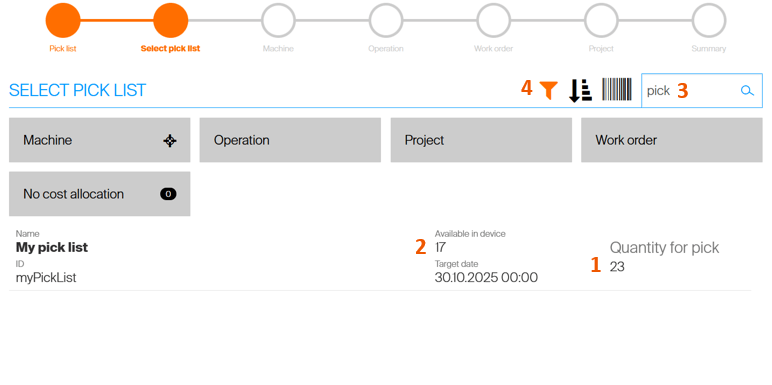
List selection screen show all available pick lists with remaining quantity to be picked from the list
(1) and quantity of required items available in this device
(2). It is possible to search in the lists by their ID or name and by contained items
(3). If some of the lists have predefined cost allocation, by activating cost allocation filter
(4) it is possible to filter only pick lists for specific cost allocation. After CA filter is active, select cost allocation step and value. Only steps and values which can be found in available lists are shown. Select list to continue.
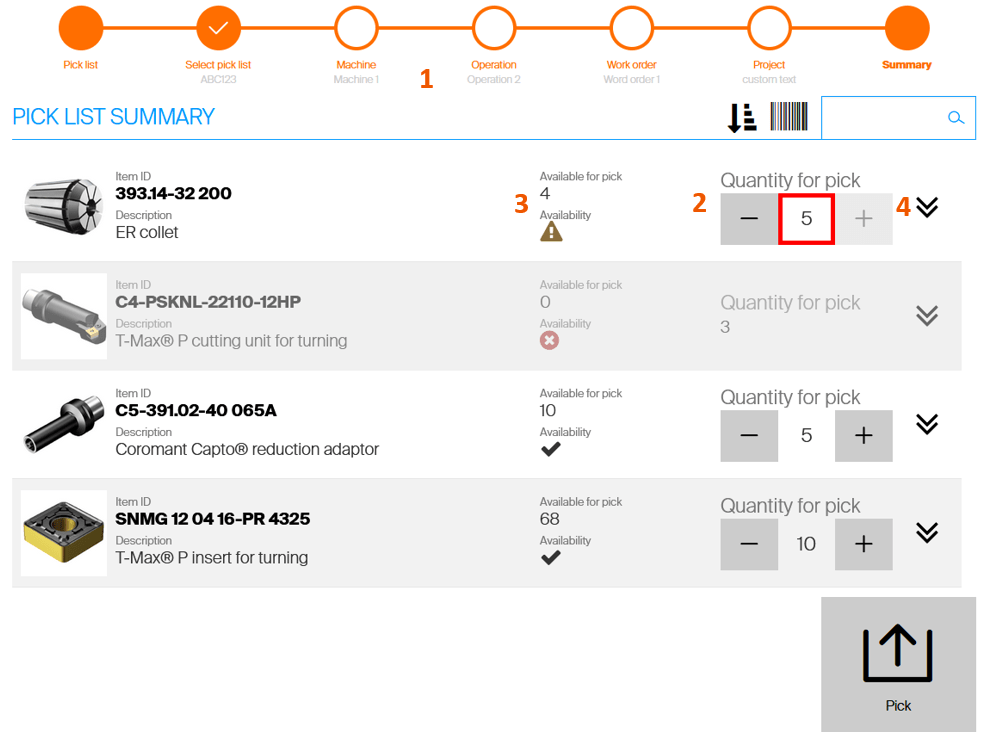
If cost allocation is preselected in the pick list, it is automatically selected in the flow
(1) and cannot be changed. If not, all steps to select cost allocation needs to be performed, as described in picking flow. Pick list summary shows all items defined in the pick list with required quantities
(2) and their availability in this device
(3). Items available fully according required quantity are marked as ok. Items partially available are marked as warning and items not available at all (including items not assigned in this device) are marked as error. Touching not available item will show information, where this item can be found within all stocks and production. If pick list allows to change quantity for pick, plus and minus buttons are available to specify different quantity than required by the pick list. Pick list may allow to pick more items than requested. In such case, plus button is available to increase quantity for pick up to quantity available for pick. If this option is not allowed by a pick list, it is not possible to increase quantity for pick above the quantity defined by the pick list. To see more information about item (like its related items or item documents), click on the item line or expand the line
(4). All item information can be shown without losing any selection made in the summary step. If some of items are not available due to restrictions, number of restricted items is shown:  Proceed
with picking to take items out of the system.
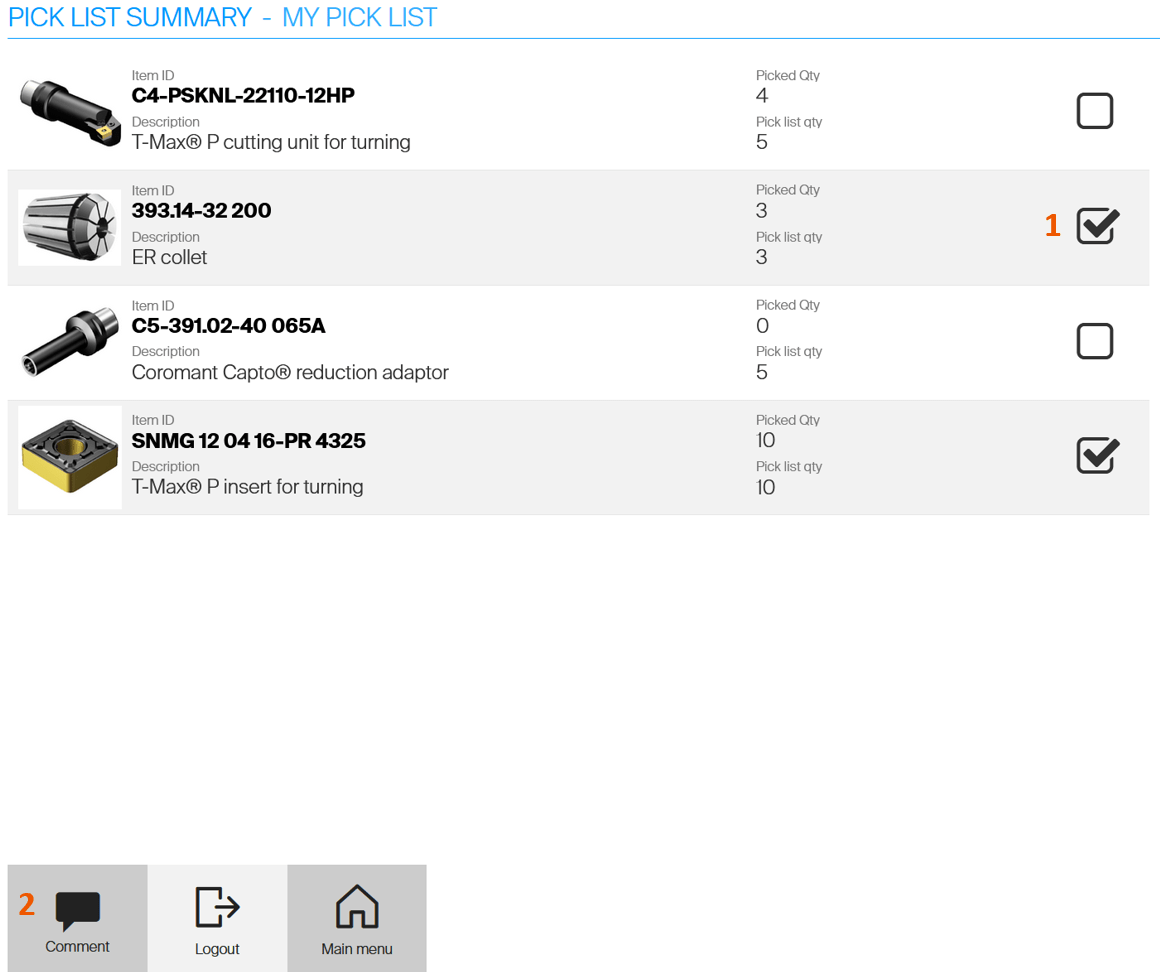
Summary shows information if all required quantities has been picked
(1). If allowed, comment can be added to the pick operation