
Additional login accessories model supported
Fingerprint: HID Global U.are.U 4500
RFID: rfIDEAS RDR-80xxxxU
Coges: All models
Barcode: Any barcode scanner with USB connection
Get started with login
Enter your username/password on the device’s screen and click Login.
To switch between login methods (user name/password or external methods), press the button with card icon (1).
You can set up new methods after logging in.
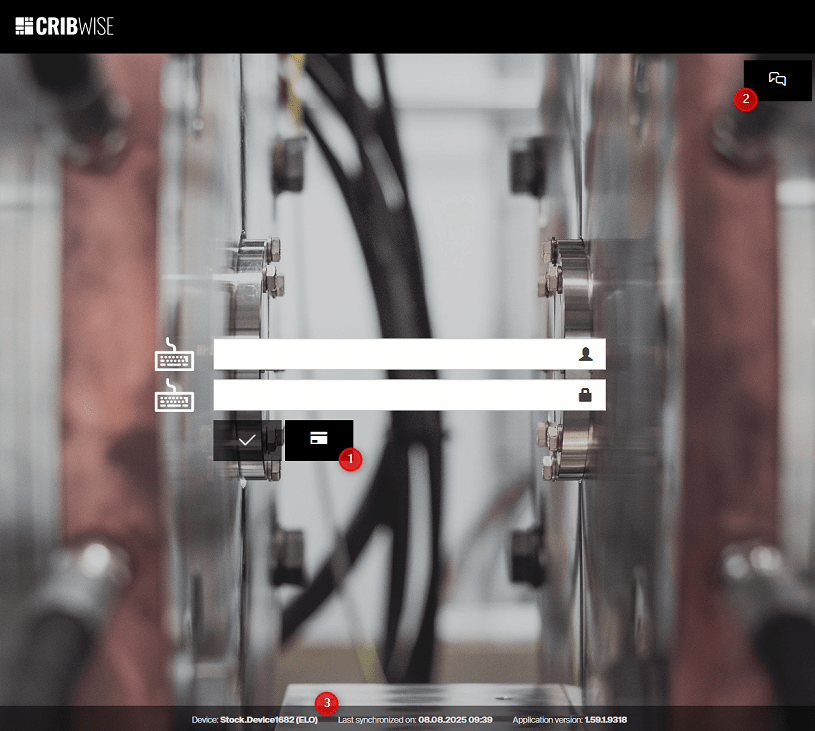
If the application behaves unexpectedly, press the support button (2) to send a message—along with diagnostic info—to your support team. The login screen also displays service information about the device; be prepared to share this with support staff if needed. Login screen offers additional service information about the device (3). Provide this information to support personnel in case of any issues.
Set new password during login
If logged in user is forced to set new password, new password must be set before user is allowed to open Shop Floor Interface.
When prompted, provide new password, and confirm that password.
Once set, user is navigated to SFI application.
If the user does not set a new password, they will be returned to the login screen.
Accessing cloud SFI
To access cloud installation, navigate to URL provided by system administrator and login via web browser.
Cloud SFI access is only possible with username and password If there are more cloud devices accessible, system will allow to select with which device you want to work.
Select device to continue (1).
Devices locked by stock administrators appear greyed out and cannot be selected (2).
Press Remember choice (3) to automatically select this device during next log in.
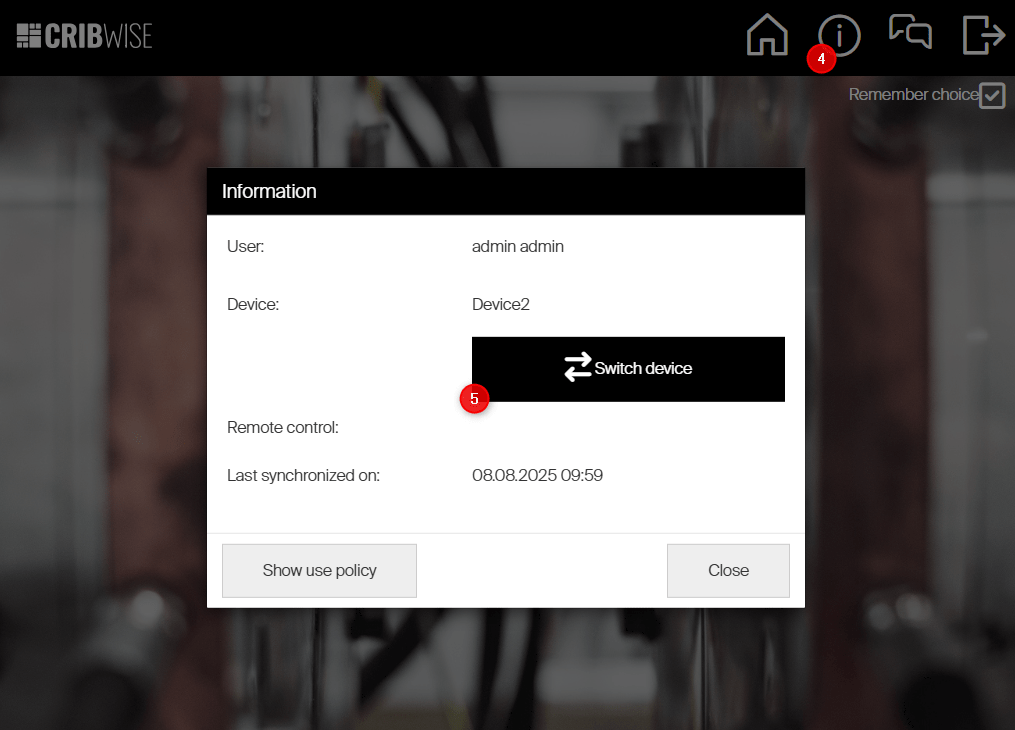
To change device after selection, open Device information (4) and press Switch device (5).
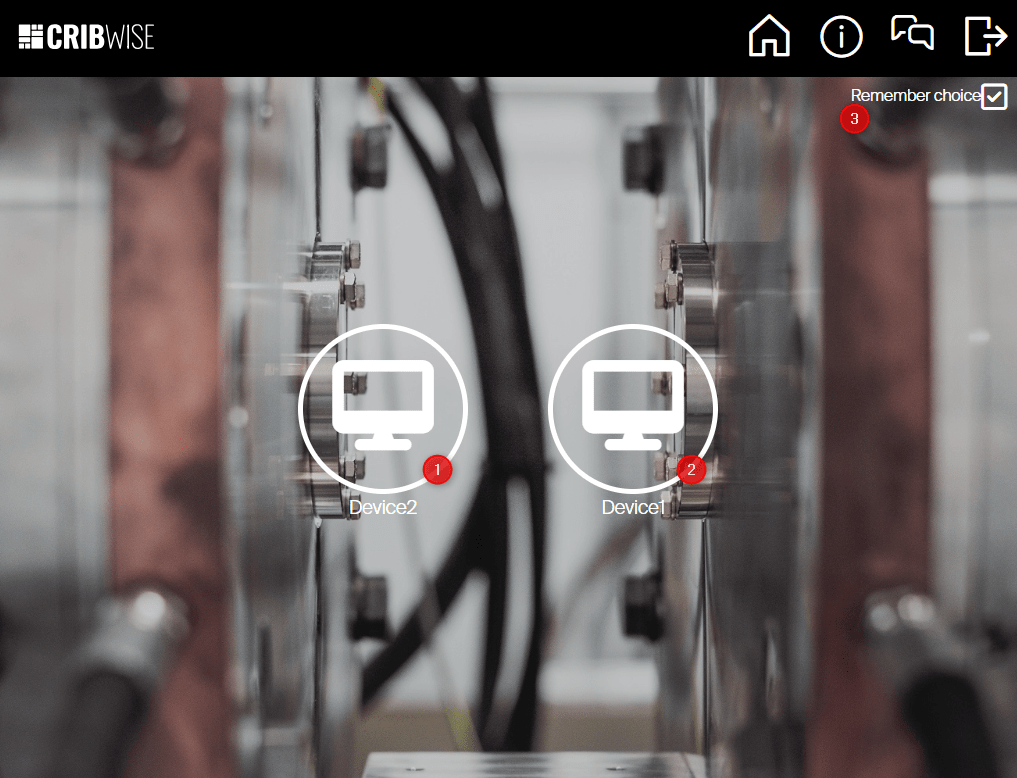
This screen is not shown if there is only one cloud device available for currently logged in user.
Register additional login method
On a PC running the Shop Floor Interface application, users can register additional authentication methods. Following login methods are available:
- RFID,
- Barcode,
- Coges key,
- Fingerprint.
New login method can be assigned and used only if related hardware accessory is connected to the PC.
Note! This option is not available for Shop Floor Interface running in cloud.
To register a new login method, login to the application using username and password or method already registered.
Select device information in the application header (1)
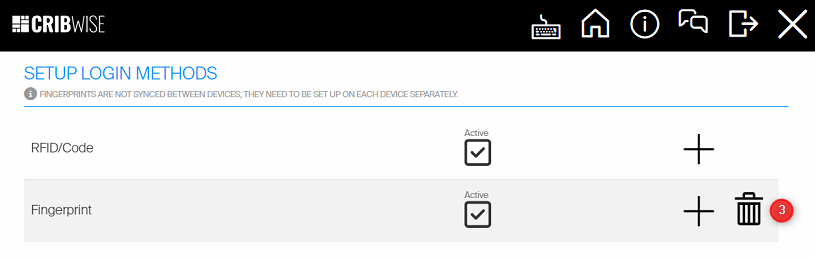
Select to Setup login methods (1).
Setup screen will list all login methods available on the PC.
If a method does not appear, the necessary accessory may not be connected or configured correctly To register new login method, press Register icon (3).
You will be prompted to login again to ensure you are owner of the account.
Proceed with login using username and password or any login method already registered.
After logging in, select the desired method and register a new key—scan your RFID card, barcode, Coges key, or begin fingerprint enrollment.
Enrollment of new fingerprint will require several scans of a finger. Follow instructions until the process is finished.
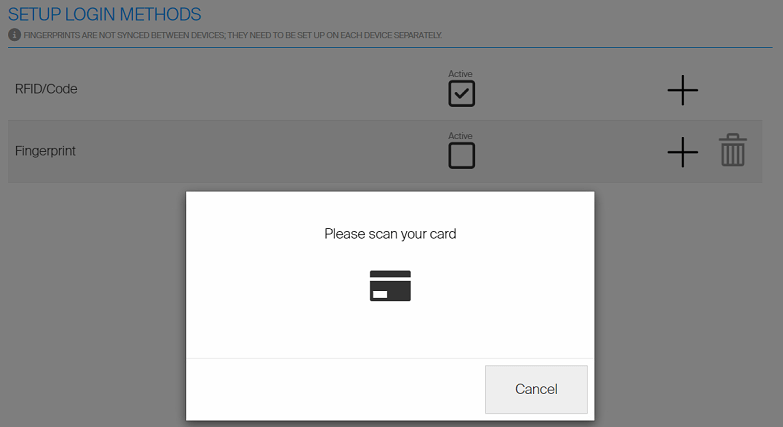
Once finished, registered login method will be shown as Active in the list and can be used the next time during login.
Several keys or fingers can be registered.
To register additional key or finger, repeat the process.
New Registered keys (RFID, barcode, Coges) can be used on any SFI device; registered fingerprints are device-specific and will not be synchronized to cloud or transferred between devices.
To remove registered key (RFID, barcode or Coges key), contact system administrator. To remove registered fingerprints, press Remove button (4).
The fingerprint reader requires a local SDK to be installed on the PC running the SFI. You can find the necessary files below.