
User management options are the same as described in Manage user groups.
If Enable privileges override is enabled for the current user, options on user level can be overridden by selecting Override group settings for each specific area. 
General information
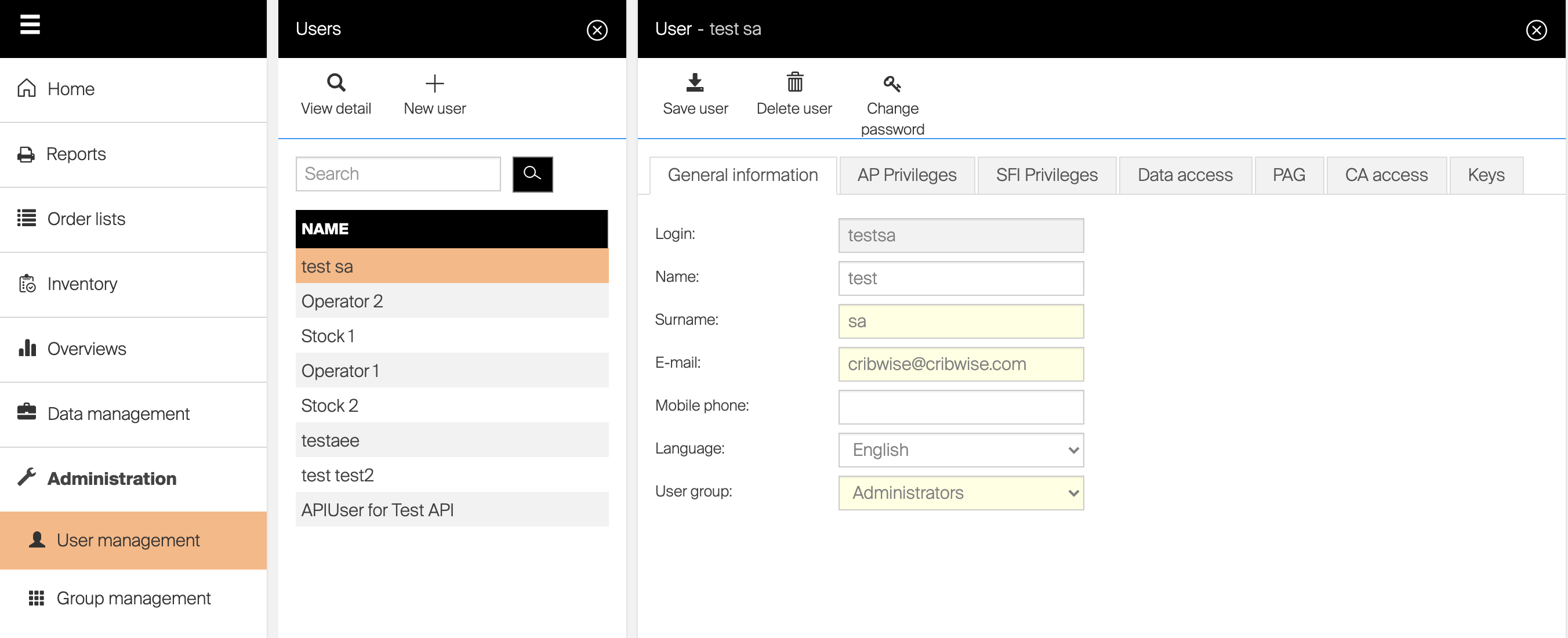
Main tab on user management differs from user group management, allowing to specify information related to a user:
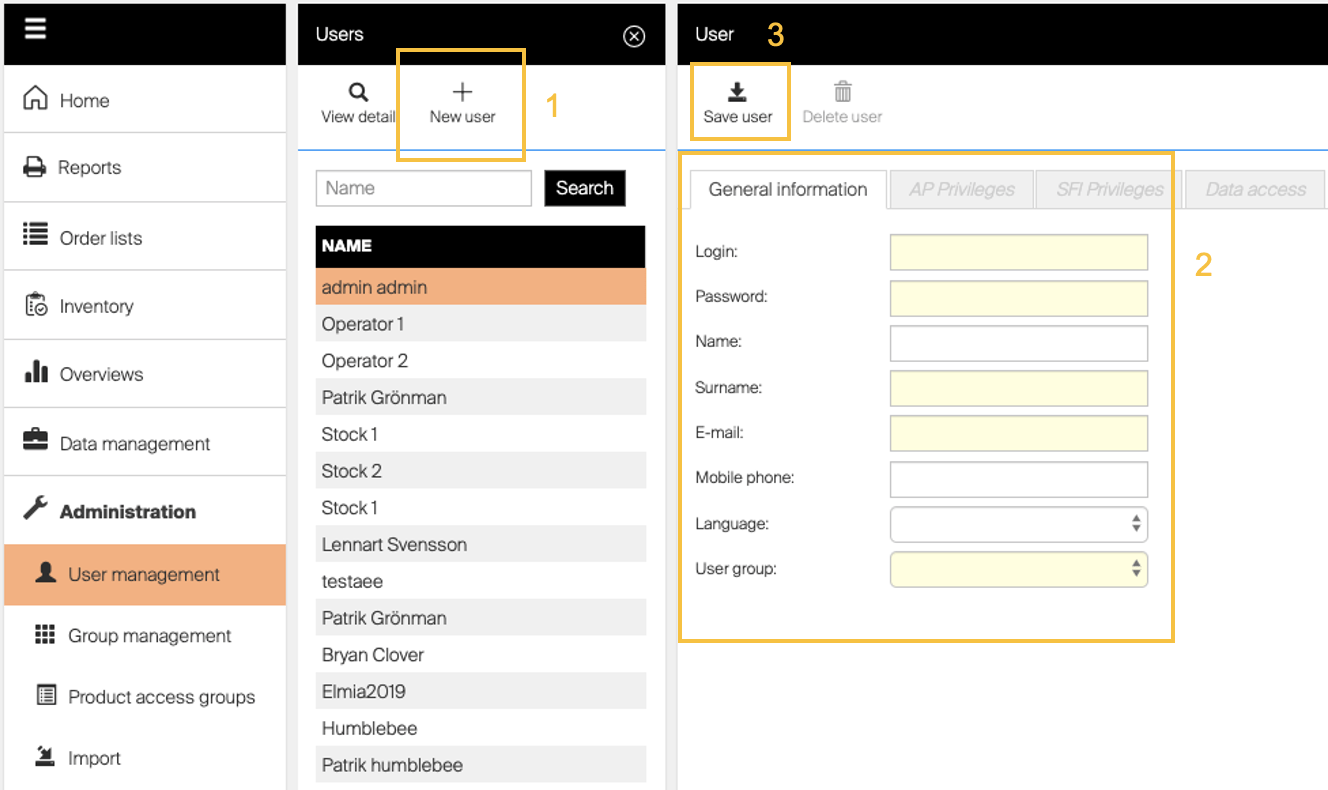
Login – User will log in to system with this login name. Customer specification is added automatically to this name in format customerId/name. Name must be unique and cannot be changed after user is saved for the first time. Name – Name of the user. Together with surname is shown within the application.
Surname – Surname of the user. Together with name is shown within the application.
Password – Password to access the system. Minimum length of password can be specified in system settings, see Access control. Field is visible only when new user is created.
Confirm password – Password confirmation (must match with Password). Field is visible only when new user is created.
User must change password during next login – If set, user will be forced to set new password after login to AP (Admin Portal) or SFI (Shop Floor Interface). Field is visible only when new user is created.
E-mail – User’s email (unique)
Mobile phone – User’s contact phone
Language – Language preference for the user. If set, language of AP (Admin Portal) and SFI (Shop Floor Interface) applications will be set according selection when user is logged in. If left empty, default language will be used instead (for AP from system settings, for SFI from device detail).
User group – Assigned user group for users To set new password for existing user, press Change password ( ) option in the top menu bar. Enter password and password confirmation, and set if user will be forced to set his own password during next time he will log in to AP or SFI. If user’s account is locked due to too many invalid login attempts, information about locked account is shown at the top of the tab. If automatic unlock is setup, message also contains information when this account will be active again:

To immediately activate user’s account, press Unlock (  ) option in the top menu bar. See Access control for more information how to set login retry policy.
Keys
When alternative login method is used (RFID, Coges), on Keys tab specific key can be attached to a user to allow him to login to system with this key.
To add a new key to user, select Add option (  ), enter key and select key type (RFID, Coges).
Newly added key will appear on the list of keys. To edit existing key, press Edit option (  ), to remove selected key press Remove option (
  ).
).