
To access the system, navigate to the URL of your Admin Portal (AP) installation and enter your username and password.
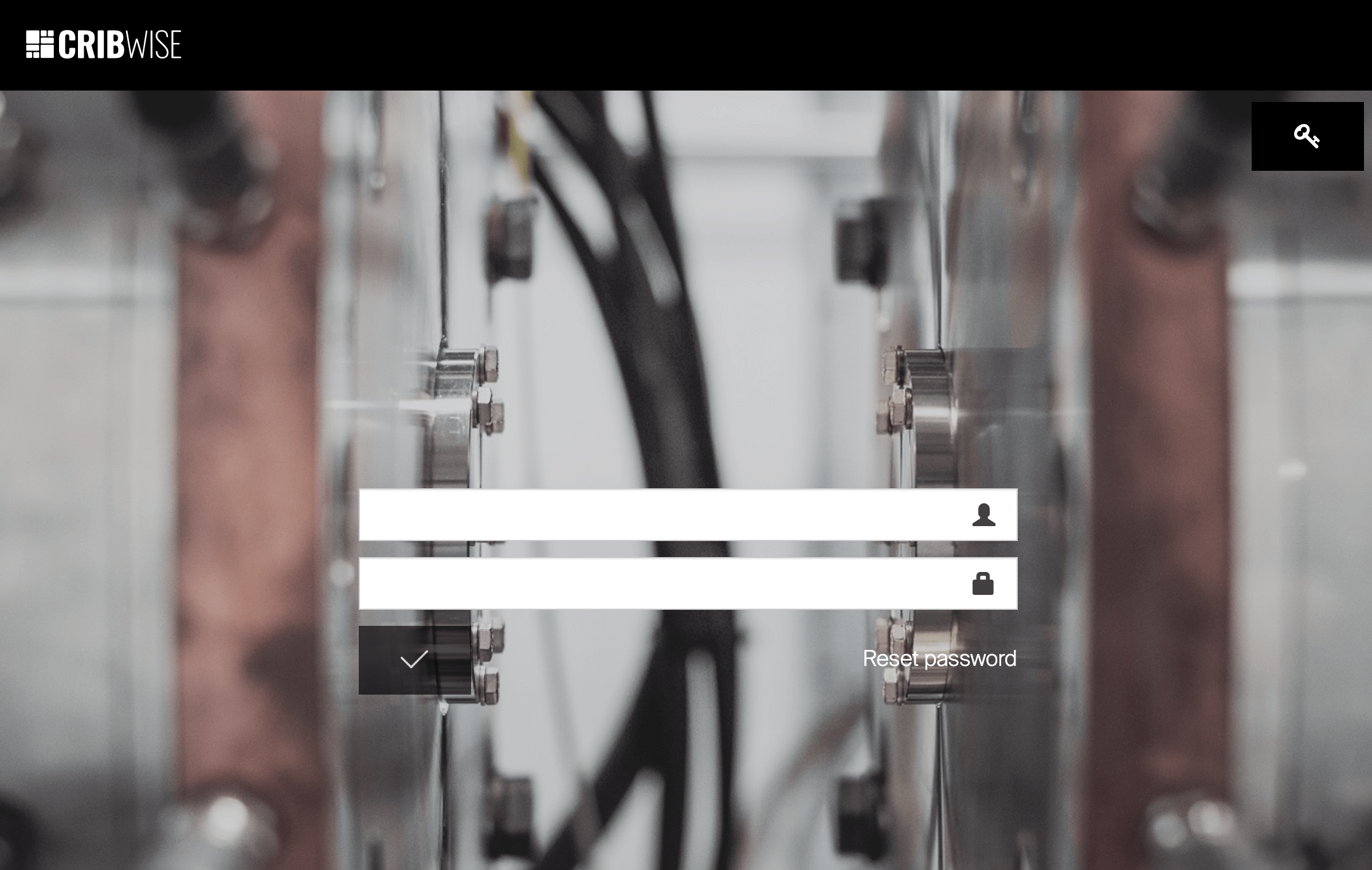
To log in with a customer account administrator (using the email account provided during the customer’s registration), switch to Administrator login — click the key icon  in the top-right corner.
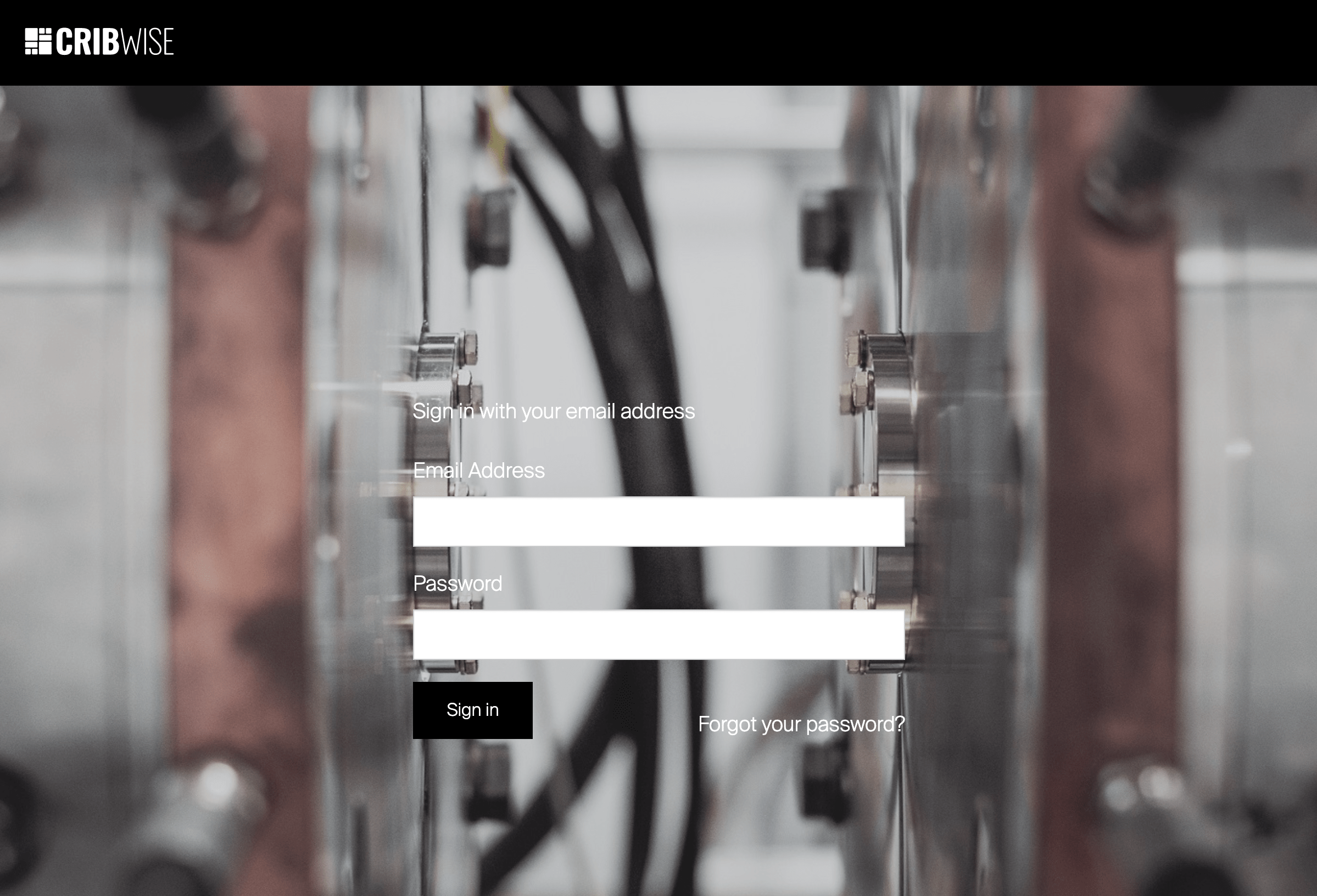
Set new password during login
If a logged-in user is forced to set a new password, it must be set before the user is allowed to open the Admin Portal.
Once asked, provide a new password and confirm it.
After setting, the user is navigated to the AP application.
If the user does not set a new password, they will be navigated back to the login screen. S
ee Manage users for enabling “force password change”.
Reset password
If the password is forgotten or the user wants to set a new one, a reset can be requested from the AP login screen.
To confirm identity, enter the username and the email address attached to that username.
If a user with that email is found, a temporary password will be sent to the user’s email address.
This password is valid for one hour and can be used to log in.
Once used, the user will be asked to set a new password. After expiration, the temporary password will no longer be valid for login.
When a temporary password is sent, the user’s regular password is not affected and can still be used for login.
It is not possible to reset the password for the customer account administrator using the email provided during customer registration, but you can use the “Forgot password” function.