
Export functionality allows user to export data from system to Excel file. Data in this Excel file can be updated or the file can be used as a template for future import (changes in file structure are not allowed).
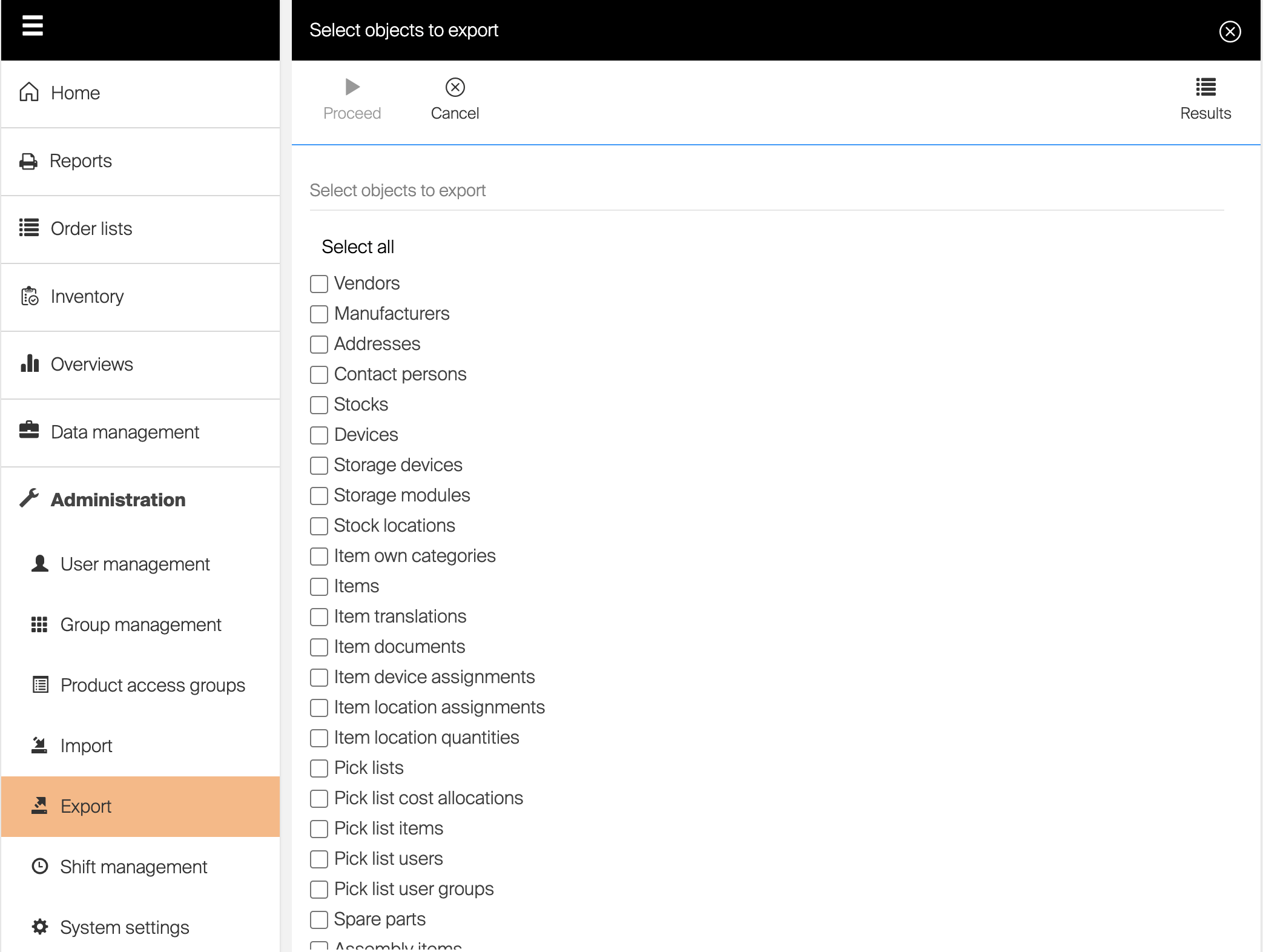
Exporting of data consists from following steps:
- Select objects to export – for each selected object sheet can be found in exported file. If only one object is selected, selection of specific columns can be performed. Otherwise all columns will be exported. Selection is confirmed by pressing Proceed
- After Proceed is selected, export file creation is started. Based on server workload and amount of data this operation can take up to minutes. When export is prepared, information toaster is shown.
- When export is prepared, file can be downloaded from export results list in format of Excel file. All exports done in the past can be accessed by selecting Export option in Administration menu, then Results option on view options.
If object containing picture (CA step, CA definition) and/or item documents are exported, zip archive containing all pictures and/or document is offered for download together with the Excel file. Pictures and documents are referenced in Excel file using file names.
Detail of each finished export can be opened to show what entities were exported by this action.
Export result list automatically clears historical records older than six months