
What you can do
Back up your on-premise CRIBWISE data before a software update: the relational database, the MongoDB table storage, and the files on the file system. These operations are performed from the computer (server) hosting the application.
Important: For cloud installations, backup and restore are handled by the service provider and cannot be performed by customers.
What gets backed up
Data is stored across three types of storage. Back up all three for a complete copy.
| Storage | What it holds | Location |
|---|---|---|
| Relational database (MSSQL LocalDB) | All structured relational data, including entities and their relationships | C:\Windows\System32\config\systemprofile |
| Table storage (MongoDB) | Unstructured data, such as system events, events, and reporting data | C:/MongoDB |
| File system | All downloaded files and files prepared for download from the Admin Portal, such as item documents, and import/export files | C:/Storage |
Before you start
- Sign in to the computer (server) hosting the application. Every step in this guide runs on that machine.
- You need permission to stop and start Windows services on that machine.
- Choose a backup location with enough free space for the database files, the MongoDB folder, and the file storage folder.
- Plan a maintenance window. The Admin Portal is unavailable while its service is stopped.
Note: Certain backup steps require that the Admin Portal service is not running. To minimize risk and ensure data consistency, it is recommended to keep the Admin Portal service shut down for the entire duration of the backup process.
Quick start
Experienced administrators complete the backup in 5 steps:
- Stop the CD.Platform and MongoDB services.
- Copy the two SmartSupplyAdministration database files to your backup location.
- Copy the C:/MongoDB folder to your backup location.
- Copy the C:/Storage folder to your backup location.
- Start the MongoDB and CD.Platform services again.
Need more detail? Follow the full steps below.
Steps
Step 1 – Stop the Admin Portal service
To stop the CD.Platform service, follow these steps:
- Press Windows + R on your keyboard to open the Run dialog.
- Type
services.mscand press Enter. - In the Services window, scroll down the list to find CD.Platform. Services are listed alphabetically, so it should appear under the “C” section.
- Right-click on CD.Platform.
- Select Stop from the context menu (1).
The Status column for CD.Platform should now be blank (instead of showing “Running”).
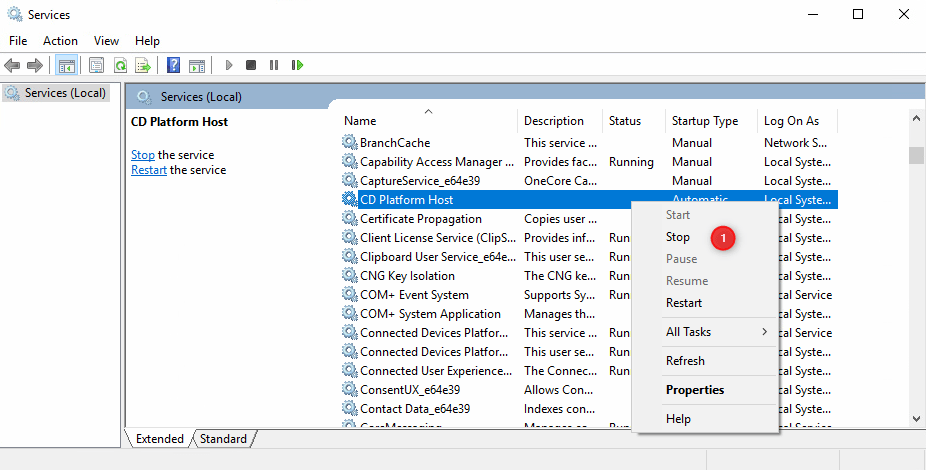
Callout 1: right-click CD.Platform and select Stop. The Status column becomes blank once the service has stopped.
Step 2 – Stop the MongoDB service
- Find the MongoDB service in the list of services.
- Right-click the service and select Stop (2).
Both CD.Platform and MongoDB now show a blank Status column.
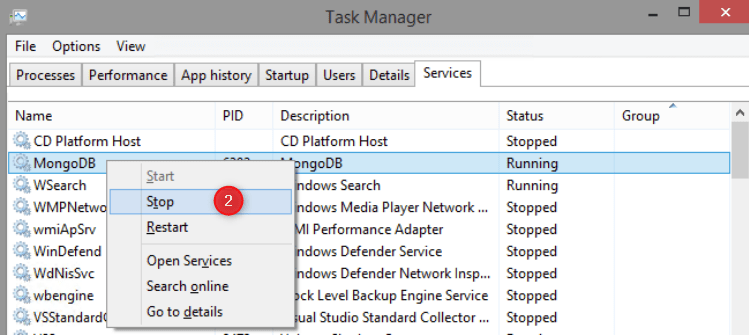
Callout 2: stop the MongoDB service the same way. Here CD Platform Host already shows Stopped from Step 1.
Step 3 – Back up the SQL database
- Navigate to this location:
C:\Windows\System32\config\systemprofile
- Locate the files SmartSupplyAdministration.mdf and SmartSupplyAdministration_log.ldf.
- Copy both files to your backup location.
Step 4 – Back up MongoDB
- Navigate to the MongoDB installation directory:
C:/MongoDB
- Copy the entire folder to your chosen backup location.
Tip: Alternatively, mongodump can be used to dump all data without need to stop MongoDB services. To dump data, start C:\MongoDB\Server\bin\mongodump.exe. For more information, visit the MongoDB backup documentation.
Step 5 – Back up the files on the file system
To backup of files stored on file system (such as item documents, and import/export files), it is recommended to stop CD Platform services to prevent any data loss. You did this in Step 1.
- Copy the entire folder to your backup location:
C:/Storage
Step 6 – Start the services again
- Start the MongoDB service again.
- Start the CD.Platform service again.
Success: Your backup location holds the two SmartSupplyAdministration database files, a copy of the C:/MongoDB folder, and a copy of the C:/Storage folder. In the Services window, both MongoDB and CD.Platform show “Running” again, and the Admin Portal is available.
Next steps
- Run the software update — with the backup in place, continue with How to update the on-premise Admin Portal.
- Know how to get the data back — read How to restore on-premise data before you need it.
Troubleshooting
| Problem | Likely cause | Fix |
|---|---|---|
| You cannot find CD.Platform in the Services window | The list is long and scrolled past the entry | Services are listed alphabetically — scroll to the “C” section |
| The Status column still shows “Running” after you select Stop | The service has not finished stopping | Wait, then refresh the Services window. Only copy files once the Status column is blank |
| A .mdf or .ldf file cannot be copied because it is in use | The CD.Platform service is still running and holds the database files | Stop CD.Platform as described in Step 1, then copy the files |
| You cannot stop the MongoDB service | Another process depends on MongoDB running | Use mongodump instead — it dumps all data without the need to stop MongoDB services (see Step 4) |
| The Admin Portal is still unavailable after the backup | One of the services was not started again | In the Services window, start MongoDB first, then CD.Platform (Step 6) |
| You cannot find these services or folders on your machine | You are on a cloud installation, not an on-premise one | Backup and restore are handled by the service provider and cannot be performed by customers |
Related articles
- How to restore on-premise data — put the database, MongoDB, and file storage backups back on the server.
- How to update the on-premise Admin Portal — the software update this backup protects.
- How to clean up on-premise data — remove old data to keep the on-premise database and storage small.
- How to install on-premise — set up the Admin Portal and its services on your own server.
- How to migrate the Admin Portal database from LocalDB to SQL Server — move the relational data to a SQL Server instance you manage.